

Planning your week’s meals
Die Hilfeartikel gibt es bisher nur auf Englisch.
The Meals tab lays the week out as a grid, with days across the top and meal types down the side, so dinner planning becomes a five-minute Sunday ritual. Meals are part of Plannie Premium.
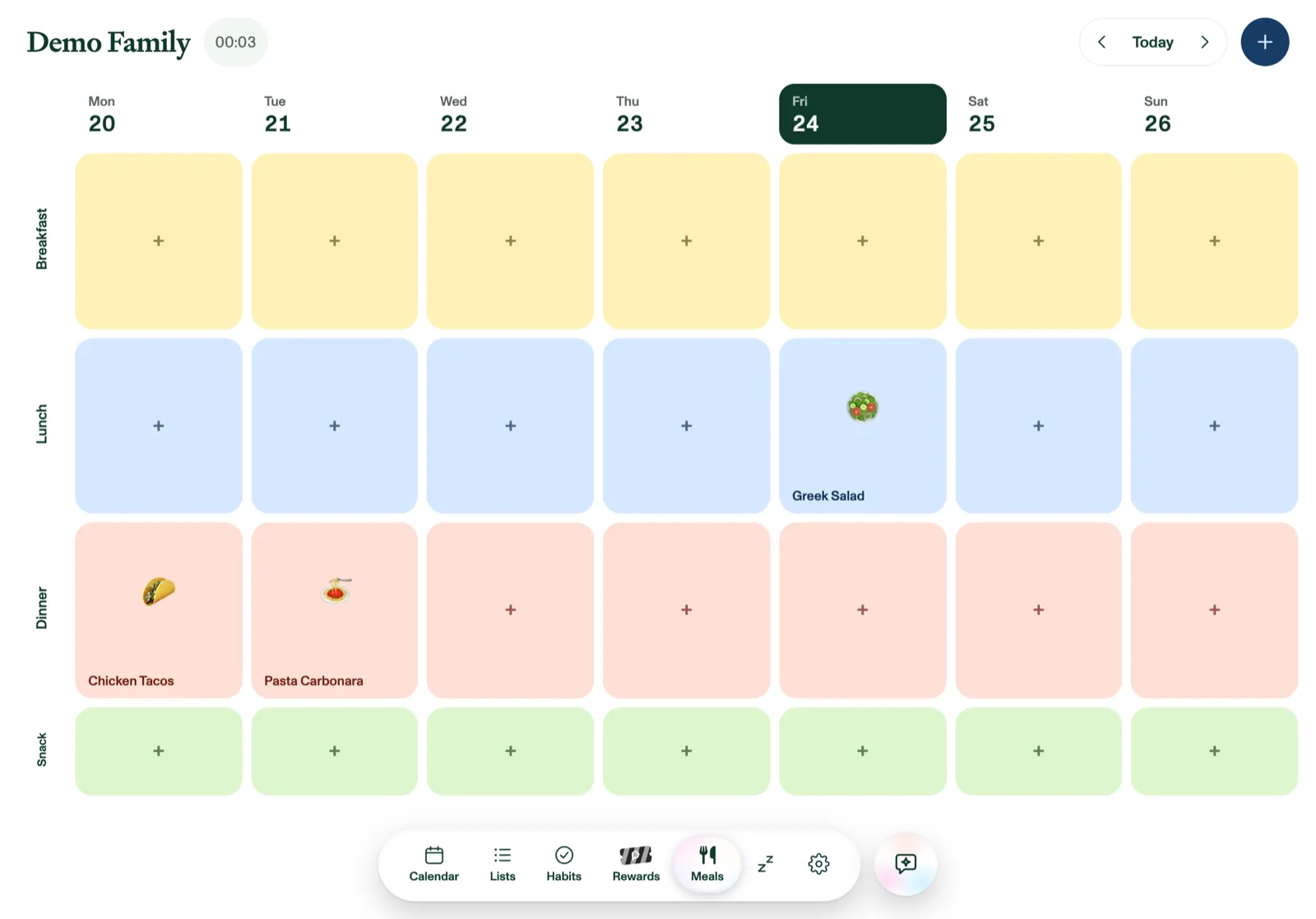
Plan the week
Tap any square to schedule a meal there, picking from your recipes. Drag a meal between squares to move it. A square can hold two meals side by side when needed.
Rows cover breakfast, lunch, and dinner, plus optional morning and afternoon snacks. Both snack rows are off until you need them; turn rows on or off under Settings → Meals.
Recipes
Add recipes with the + button: name, emoji, prep time, ingredients, instructions, and a photo. A dish's photo shows on its square in the weekly grid, in your recipe library, and on the recipe card when you open a meal. Numbered instructions ("1. … 2. …") are shown as tidy step-by-step rows on the recipe card.
You can also import a recipe from a link or a photo. Plannie reads the ingredients and steps for you, and picks up the dish photo too (from the web page, or the photo you imported). Or ask Plannie Assistant to "plan tacos for dinner on Friday."
Find a photo for a dish
On Plannie Premium, the recipe editor's Photo mode has a Find a photo button. Plannie searches Pexels using the dish's name, in any language, and shows six photos at a time, with the ones that look best in a small card first. You can edit the search, or tap Show more to see other photos. The photo you pick is saved with the recipe, and a small "Photo by … on Pexels" credit sits at the bottom of the recipe.
Recipes that Plannie Assistant creates get a fitting photo by themselves a few seconds later. If none fits, the recipe keeps its emoji.
On the free plan the button is greyed out with a Premium tag.
From plan to shopping list
Generate grocery list collects every ingredient from the week's scheduled meals, de-duplicates them, and drops them onto your Groceries list, ready for the store.
Missing just one thing? On a meal's recipe card, tap the little basket next to any ingredient to send that one ingredient to Groceries. The basket turns into a check, and anything already on the list isn't added twice.