

Using the Calendar
Hjälpartiklarna finns än så länge bara på engelska.
The Calendar is the heart of Plannie: everyone's events in one place, tinted with each member's color so you can read the week at a glance.
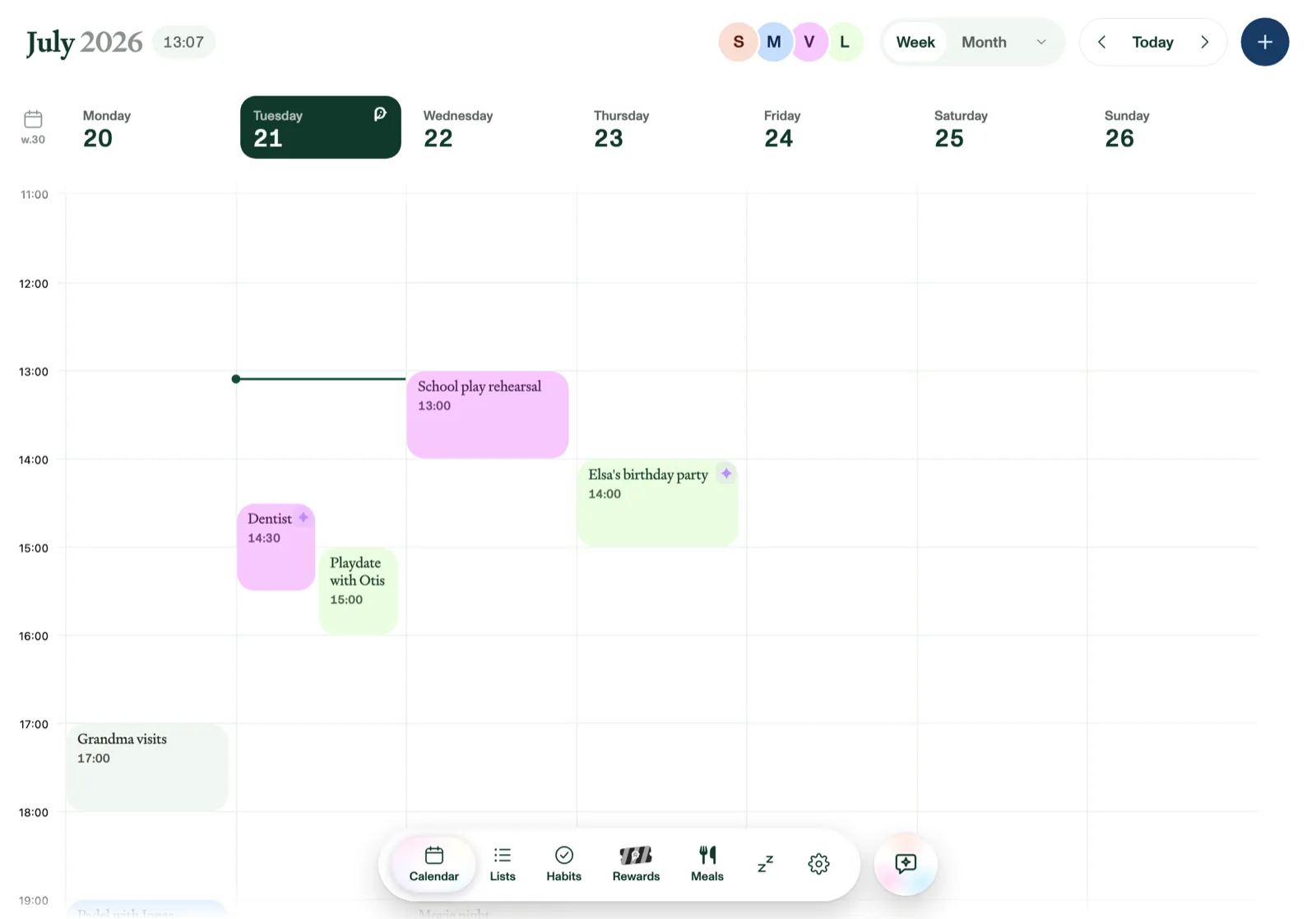
Views
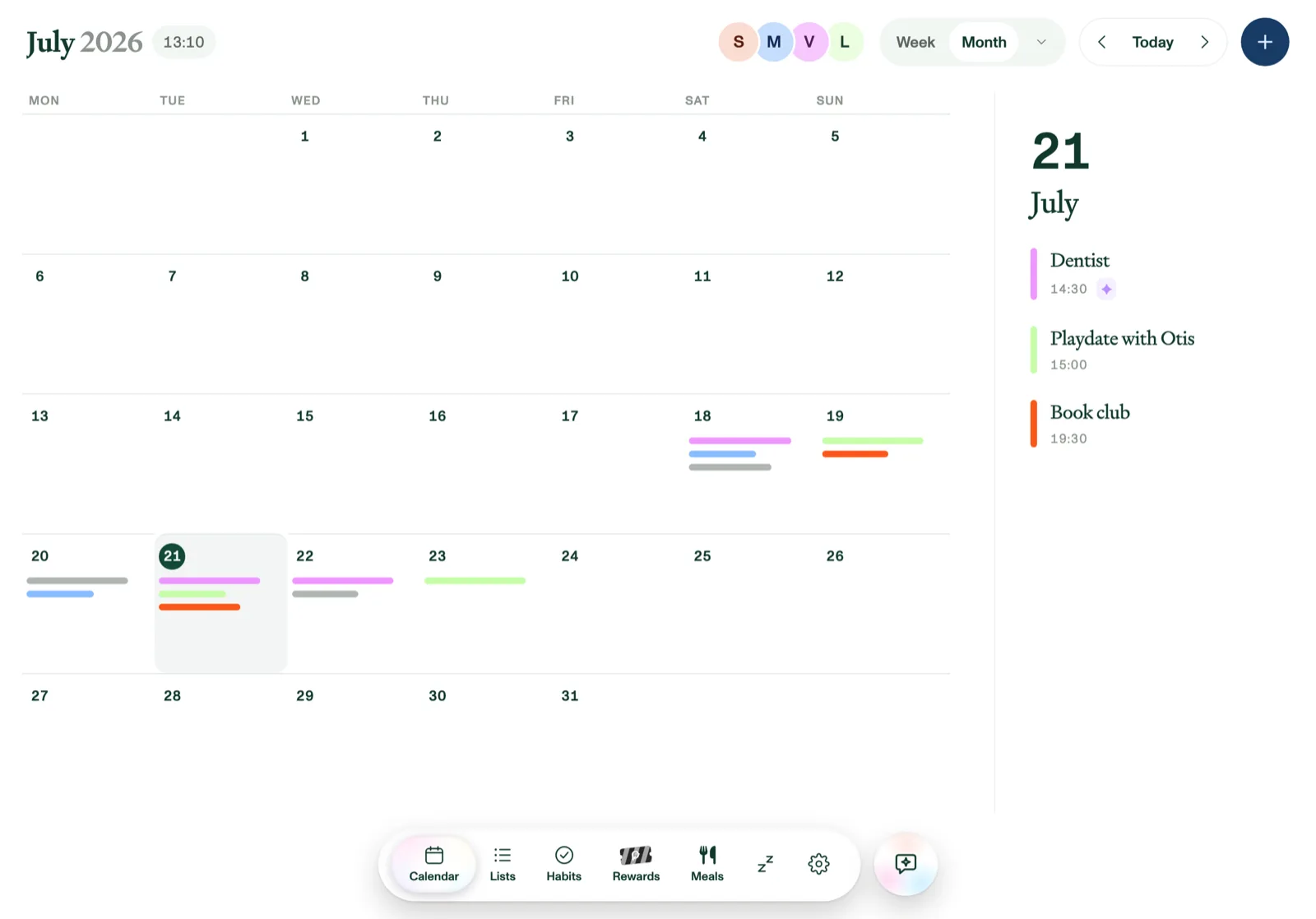
Switch between Week and Month with the toggle in the header; Agenda, Day, 4 days and List views sit behind the small arrow next to it. The ‹ Today › control steps back and forward, and always brings you home to today. On a phone it is a single calendar icon showing today’s date: tap it to jump back to today, and swipe sideways to page. On a phone the views live in the calendar menu instead: tap the menu button (☰) at the top left. Under the Plannie logo it lists Agenda, Day, 4 days, Week, Month and List, and below them a checkbox for each family member under People shows or hides that person’s events (uncheck the last one and everyone comes back). Tap outside the menu or swipe it to the left to close it. List view is the exception: it always opens on today, wherever Week or Month paging left you, and scrolls on through your upcoming events, loading more as you reach the bottom, so it has no ‹ Today › control. Scroll up from today to walk back through events that have already happened; past days are shown dimmed so today still stands out.
Plannie remembers the view you last picked and which family members you've hidden, even after you close the app. On your own phone or tablet, the members you hide stay hidden on your other personal devices too; on a screen the whole family shares, they're remembered for that screen only. Settings → Calendar → Default view sets the view the Calendar opens on only until you pick one yourself.
Week view opens scrolled to the current time, with the now-line about two hours down from the top, so the rest of today is in view. On a touch screen you can swipe sideways across the grid to page a week forward or back — the day cards and the grid move across together, and the week you are heading for follows your finger as you drag, so you can peek at it before you commit; let go before you have dragged far and it settles back on the week you were on. Paging with ‹ ›, or by swiping, keeps the same hours in view, and Today brings you back to this week and scrolls to the now-line again. Today’s column sits on a faint warm tint in Week and 4 days view, so the current day is easy to pick out at a glance.
Agenda and Month page the same way. Swipe sideways to move on a day, or a calendar month, at a time — the page you are heading for follows your finger as you drag, and settles back if you let go before you have dragged far, just as in Week view — and ‹ › do exactly the same thing. List view is the one without it: it is a single list that scrolls on in both directions, so there is nothing to page sideways through.
4 days is a rolling window: today and the next three days, side by side in the same grid as Week but with room to spare on a narrow screen. It always opens on today, wherever Week or Month paging left you, and ‹ › and swiping move it four days at a time; Today brings it back to today-first. Weekends always stay in view here, even if you have hidden them elsewhere, because the four days have to stay next to each other. If it suits your family better than Week, make it the one the Calendar opens on in Settings → Calendar → Default view.
Day is the same hourly grid as Week, with the all-day row along the top and the now-line, for a single day. It always opens on today, ‹ › and swiping move it one day at a time, and Today brings you back to today. It can also be the view the Calendar opens on in Settings → Calendar → Default view.
An event that runs over more than one day shows on every day it covers. An all-day one, like a trip or a school break, is a single bar across the top of Week, Day and 4 days view, stretching over all its days and squared off where it carries on past the days on screen. One with start and end times shows as a block on each of those days in Week, Day and Agenda view. In Month view either kind is one continuous bar that squares off where it crosses into the next week.
When two or more events overlap, Week view cascades them instead of splitting the column into equal side-by-side halves: the longest event keeps the full width on the left, and each shorter event overlapping it steps a little further in from the right and sits on top, with a thin outline around it so you can still see the one underneath. An event only steps in far enough to clear the events it actually overlaps, so in a run where each event overlaps the next but not the one before, the indent goes back once the earlier event has ended instead of marching further and further right — and two events that overlap in time never share an indent. All of them stay tappable.
A calendar can be set to show as busy only: its events appear as plain Busy blocks with the time and the member's color, and tapping one opens nothing — both on a screen the whole family shares and on every other family member's own phone or tablet. Only the person whose calendar it is still sees the full details, along with anyone who is part of that event (its creator, or someone assigned or invited to it) on their own device. See Syncing with Google Calendar.
Search events
Tap the magnifier in the calendar header, next to Today and before +, and a search field opens across the header. Type at least two letters and Plannie lists every event whose title, location or notes match, from two years back to two years ahead, in date order — past events as well as upcoming ones. Hidden family members stay hidden in the results, and a recurring event that matches shows each of its dates. Tap a result to open it; close it and your search is still there. Cancel takes you back to exactly the view and date you were on. Search needs an internet connection.
Add an event
Tap an empty slot, or the + button in the top corner:
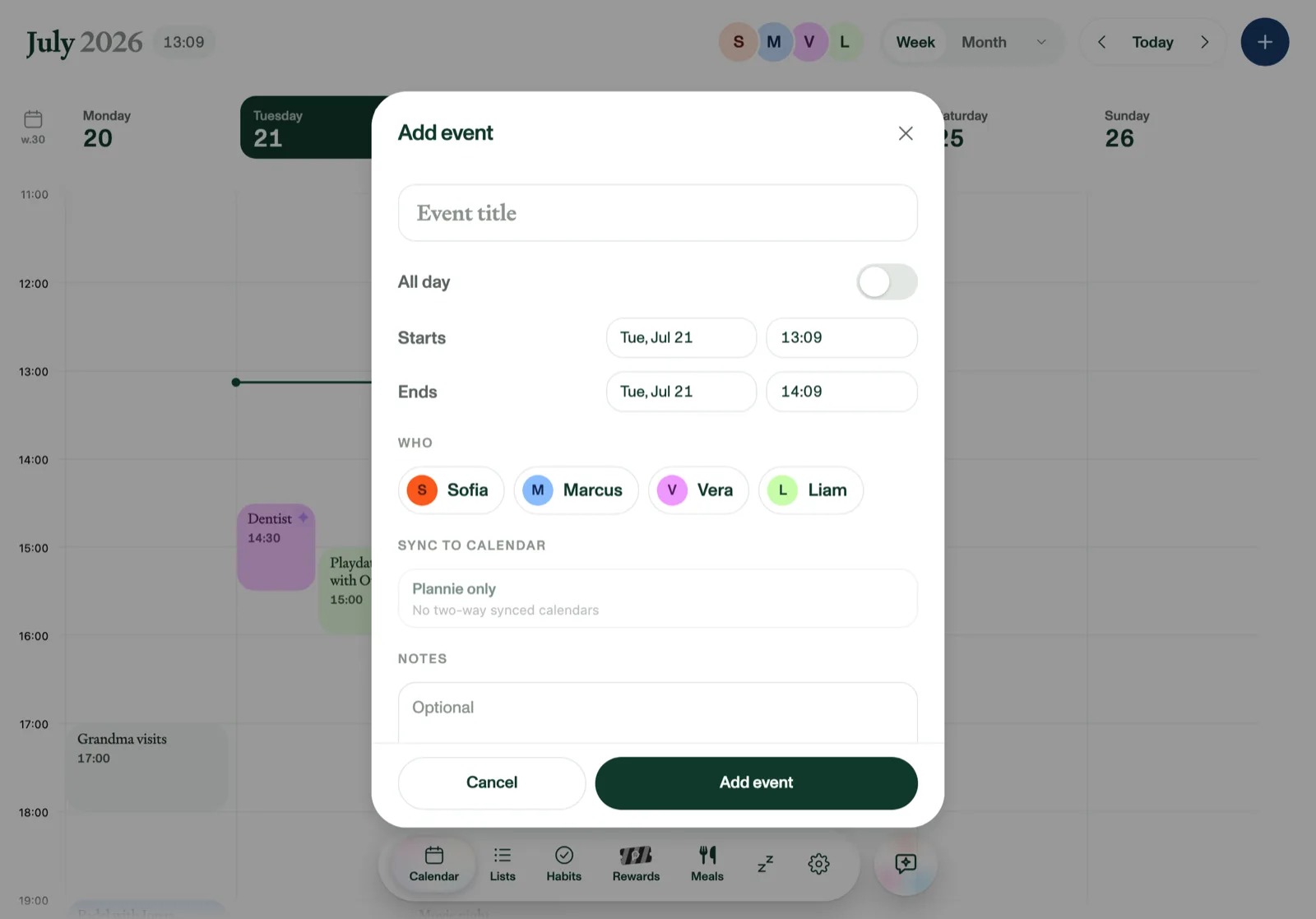
- Title, start and end, or flip on All day. An all-day event keeps its Ends date, so set a later day there to make it run across several days: a holiday, a trip, a school break.
- Who: assign one or more family members. The event takes their color; events for several people show split color bands, and unassigned events stay neutral. In Week view the assigned members' avatars sit in the bottom-right corner of the event, on all but the shortest ones — up to three, and a small +2 badge (9+ at most) stands in for anyone beyond that.
- Sync to calendar: copy the event to a connected Google or Outlook calendar. Assigning someone who has a default calendar set for their profile ticks it here for you; add or untick any calendar for this one event. See Syncing with Google Calendar.
- Location sits right under the date. Type a place or address; where address suggestions are available, matching places appear as you type.
- Notes, recurrence, reminders, and attachments round out the details, along with a video call link, guests, a color and Show as (see below).
On an iPhone or iPad you can also add an event, or move one to a new time, by voice. See Using Plannie with Siri.
To change or remove an event later, tap it. Edit on its card opens the event form, and Delete, just to the left of it, asks you to confirm before the event goes. The event form has a Delete button too.
Tasks in the calendar
Tasks live in Lists, and any to-do with a due date also shows in Week, 4 days and Day view.
When tasks are due on a day, the card at the top of that day's column shows how many, like 3 tasks ▾. On a phone it shows just 3 ▾, on its own line under the date. Tap it to see that day's to-dos, each with a checkbox, its list and time, and the avatars of the people it's assigned to. You can check tasks off there, or uncheck them. Once everything for the day is done, the card shows a check mark.
A task with a deadline time also gets a small 15-minute block on the grid at that time, in the assignee's color, with a checkbox and the task's text. If it overlaps an event, the block sits next to the event rather than on top of it. Tap the block to see the due time, the list, who it's assigned to and how many subtasks are done. From there you can tick it off, or tap Open in list to go to the task in Lists.
Ticking a task off anywhere updates the day card, the block and the list. Tasks follow the same family-member filter as events: a task shows if anyone it's assigned to is shown, and unassigned tasks always show.
Video calls, guests and colors
- Video call link: paste a Google Meet, Teams or Zoom link into Video call link. Or, when the event syncs to one of your own Google or Outlook calendars, flip on Add Google Meet or Add Microsoft Teams meeting and Google or Microsoft creates the meeting for you. The link appears after sync. Personal Microsoft accounts can't create Teams meetings, so the event still syncs, just without one.
- Invite guests: add people from outside the family by email (family members go under Who), up to 50. The invitations are sent by Google or Outlook from your own connected calendar, so pick one of your own calendars under Sync to calendar. Once an event has guests, only the person whose calendar sent the invitations can change or delete it. On an invitation someone else organized, the guest list is read-only.
- Color: pick one of Google's 11 event colors, or keep Calendar color. The color shows in every view and syncs to Google Calendar (Outlook keeps its own).
- Show as: Busy or Free, synced to Google and Outlook. Events shown as free carry a small Free tag.
Tap an event with a video call and its card shows a Join row, with the Google Meet or Microsoft Teams logo (Zoom, Webex, Whereby and other links get a video icon). Tap it to open the meeting app, or the browser if the app isn't installed; the copy button puts the link on the clipboard. While Google or Microsoft is still creating a meeting you asked for, the row says the link is being created. The event's location is tappable too: it opens your maps app (Google Maps in a browser), and a long-press copies the address.
Reminders
Each event can remind you at event time, 5, 10, 15 or 30 minutes before, 1 hour before, or 1 day before, and you can pick more than one, so a birthday party can nudge you a day ahead and an hour ahead. Both fire.
A new event starts on Default, which follows the household default lead time and shows you what it is; choose Off if this one event shouldn't remind anyone. The rest of the reminder preferences live in Settings → Calendar: the default lead time (same list of options), push notifications, and (in the tablet and phone apps) reminder sounds.
When the reminder arrives on an iPhone or iPad, you can deal with it from the banner itself: pull it down, or press and hold it, and tap Got it to stop that event's remaining reminders on that device without opening the app. Two other Plannie banners work the same way — a list task someone has just assigned to you offers Check off, and a nudge about a habit offers Mark done when it's the only one you still have open, which credits it just as checking it in the app would. On a shared family screen the banners stay tap-only, so nobody can tick off someone else's habit in passing. Tapping a banner now takes you to the right place — the Calendar, that list, or the Habits board — instead of just opening Plannie.
To-dos can remind you too, on your own phone or tablet but not on a shared family screen. Ten minutes before a task with a deadline time, you get an In 10 minutes push. The Deadlines and event reminders switch covers it. At 07:00 a Today's to-dos push lists what's due that day: your own tasks, unassigned ones and everything on your personal lists. To turn that one off, switch off Today's to-dos each morning under Your notifications in Settings → Calendar. Until you set that switch yourself, it follows Deadlines and event reminders, so turning that off stops the morning push too. Once you've set it, it stays the way you left it. Tapping the 10-minute push opens the task in its list, and tapping the morning push opens the Calendar.
Attachments
Events can carry documents: the season schedule, a permission slip, the party invitation. In the event form, tap Attach a photo or PDF and pick one or more files. They're listed under Attachments, photos with a small preview thumbnail. Tap one to open it near-fullscreen, or the bin icon to remove it. On an event you haven't saved yet the files show Attaches when you save, and upload the moment you save.
You don't need the form to see them: tap an event and its attachments show as thumbnails on the event card itself, between the location and the notes — photos as small previews, other files as a tile with the filename. Tap one to open it near-fullscreen, the same viewer you get from the form.
Attachments that arrive by email land here too: a PDF or photo forwarded to your Family Inbox is kept and attached to every event it created, so one flyer listing three class dates attaches to all three. Magic Import does the same: the photo or PDF you imported is attached to every event it created.
Each file can be up to 10 MB. Attachments are kept for a month on the free plan, and for two years with Plannie Premium.
Recurring events
Set any repeat pattern when creating an event: every so many days, weeks, months or years. A weekly event repeats on the days you tick; the event's own weekday starts out ticked, and if you change the event's date before saving, the tick moves with it. A monthly event can repeat on the same date (On day 10) or on the same weekday of the month (On the second Saturday, or On the last Saturday when the date falls in the month's last week), so "once a month on a Saturday" works. The choices are named after the event's own date. Repeats until includes the day you pick.
A repeating event keeps its weekday and its local time all year: a Saturday 19:00 date night stays on Saturday at 19:00, before and after the clocks change.
When you edit or delete a repeating event, Plannie asks whether you mean this event only, this and following events, or all events. Moving the time of all events from one occurrence shifts the whole series by the same amount, earlier dates included.
Invitations
When someone invites you to an event on a connected Google or Outlook calendar, it comes into Plannie with your reply attached. Until you answer, the event is drawn outlined in every view, List included — the member's color as a ring and as the text, on a plain background instead of the usual solid tint — so an unanswered invitation is easy to spot. Answering Maybe keeps the outline over a faint tint.
Tap the event and the card asks Going? — pick Yes, No or Maybe. Your answer goes straight back to Google or Outlook, so the organizer sees it, and you can change it any time. Each family member sees and answers only their own invitation: if the same invite is on two people's calendars, one person's reply never answers for the other or hides the event from them. A screen the whole family shares shows the event without anyone's personal reply. Answer No and the event drops out of Week, Agenda and Month view; it stays in List view with its title struck through and a Declined tag, so you can still find it and say yes after all.
Underneath, the card lists the guests: how many said yes, how many maybe, and how many haven't answered, then each person with a small badge for their answer, the Organizer marked as such, and Show all if there are more than five. The organizer's calendar address sits below the list. In Week view, an event with guests also carries a small round badge beside the member avatars counting the other guests who have accepted.
Weather
The Calendar's header shows the current temperature for your location (the other tabs no longer show the weather). Tap it for the next 24 hours and a 5-day outlook. The forecast updates on its own about every 30 minutes, even on a family screen that stays on all day. Set the location and units in Settings → General.